Are Smart Locks Worth It?
Smart locks are worth it when keyless entry, remote access, or guest codes solve a recurring problem. Choose a keypad for local code entry, a connected lock for remote control, or keep your deadbolt if neither helps.
On this page (8 sections)
- Are smart locks worth it for everyday convenience?
- Which of these 3 locks suits your household?
- What should you check before replacing your deadbolt?
- How do you set up a smart lock without avoidable problems?
- Are smart locks worth it if Wi-Fi is unreliable?
- What battery care and access upkeep should you expect?
- When is a regular deadbolt the better choice?
- Are smart locks worth it for your home?
Smart locks are worth it when keyless entry, remote access, or guest codes solve a recurring problem. If you rarely share access and don't mind carrying a key, keeping a working deadbolt is a sensible choice.
The biggest buying mistake is paying for connected features when a keypad would do. Start with who enters your home, how often access changes, and whether you need to control the door while you're away.
Are smart locks worth it for everyday convenience?
A smart lock earns its place when it removes a task you repeat, such as handing over keys or letting in a pet sitter. Occasional curiosity about an app is a weaker reason to replace working hardware.
Think through a normal week. Family members arriving separately may only need personal codes, while someone managing frequent visitors may benefit from remote code changes and access history.
Fingerprint entry can reduce code entry at a busy door. Still, everyone who uses the door needs a second entry method they understand, including children, guests, and anyone who doesn't use a smartphone.
A smart lock's value also depends on your willingness to maintain it. Batteries, code cleanup, and account security become part of looking after the door.
For the basics behind these features, read how smart locks work. Our smart locks and keyless entry guide explains the wider choices.
Which smart lock features are worth paying for?
Pay for the access method you'll use regularly. Separate local entry from remote management before comparing models.
- Local codes: Useful for household members who need entry without a phone or key.
- Scheduled or temporary codes: Useful for visitors whose access should end after a visit or time window.
- Remote control: Useful when you need to change access or check lock status from away.
- Fingerprint entry: Useful when frequent users prefer touching a sensor to entering a code.
Auto-lock can help with forgotten locking, but it doesn't close the door. A timed locking action also doesn't prove that the door is shut and secured in its frame.
Which of these 3 locks suits your household?
Choose Philips for flexible guest access and a matching handle, eufy for an existing eufy setup, or TEEHO for straightforward keypad entry. Each serves a different reason for replacing a deadbolt.
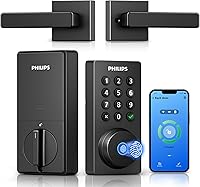
Philips: for changing guest schedules and a handle upgrade
The Philips Wi-Fi Keypad Deadbolt suits households that want to manage family, cleaners, and short-term visitors from one app. Its permanent, one-time, periodic, and recurring PIN options let you match access to the visit.
Built-in Wi-Fi supports remote control, status checks, and access history through Philips Home Access. Fingerprint entry and an included matching handle set make it a practical choice when you're replacing more than the deadbolt.
Skip it if you only want local code entry or plan to keep your current handle. Its remote features also need suitable Wi-Fi coverage at the door, so check that before choosing it for guest management.
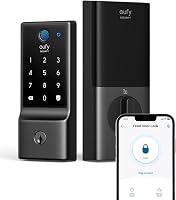
eufy C220: for households already using eufy
The eufy C220 makes sense if you have a eufy doorbell and want door routines within the eufy Security app. Built-in Wi-Fi avoids a separate bridge for remote control.
It supports fingerprint, keypad, app, physical-key, Apple Watch, and voice entry. You can also manage individual user profiles and scheduled codes, which helps when household and visitor access differ.
Skip it if you need a cylinder that can be rekeyed to match existing house keys: the C220 cannot be rekeyed. Read our eufy C220 review if its entry options fit your routine.
TEEHO TE001: for code entry without an app
The TEEHO TE001 keypad deadbolt suits buyers who want fewer keys without managing a connected device. It offers 20 access codes and a single-use guest code that deletes itself after use.
It has no Wi-Fi or remote app control. That makes it a clear choice for local entry, but a poor fit if you need to grant access from work or check door activity remotely.
Choose it when someone at home can handle code changes at the lock. Skip it for frequent remote guest management or if fingerprint entry is a priority.
What should you check before replacing your deadbolt?
Check door fit and free bolt movement first. Features won't help if the lock doesn't fit or the bolt catches on the strike plate.
Measure door thickness, the main bore hole, and backset, which is the distance from the door edge to the hole's center. Check handle clearance and opening direction too.
Philips gives a door thickness range of 1⅜ to 1¾ inches and defaults to right-opening doors. Left-opening doors need a reset to set the correct direction.
The eufy C220 fits most standard deadbolts and allows its spacer to be removed for bores under 54 mm. TEEHO requires a 2⅛-inch, or 54 mm, bore and doesn't fit 38 mm holes.
If you must lift, push, or pull the door to turn your current deadbolt, correct the alignment first. A powered lock shouldn't have to force its bolt into place.
Renters should get permission before changing hardware and agree on any required management access. Use how to choose a smart lock to work through fit and access needs together.
How do you set up a smart lock without avoidable problems?
Start with smooth mechanical operation, then configure electronic features. Keep another way into the home available throughout setup.
- Fit the hardware according to its instructions, keeping cables clear of screws and moving parts.
- Check that the bolt moves freely with the door open, then with it closed.
- Complete the required reset or door-direction setup before adding users.
- Replace default access credentials and assign separate codes to regular users.
- Confirm each entry method works before enabling automatic locking.
Philips warns against overtightening screws because this can interfere with movement. TEEHO calls for a reset before first use so it can detect door direction.
Auto-lock starts off on both Philips and TEEHO. If you enable it, choose a delay that gives people time to enter and close the door, then check the result during normal use.
Our guide to installing a smart lock covers the fitting process in more detail.
Are smart locks worth it if Wi-Fi is unreliable?
They can be worth it for local keyless entry, even when remote control isn't dependable. Confirm the chosen model's offline behavior rather than assuming every app feature will remain available.
For Philips remote access, you need 2.4 GHz Wi-Fi, with the lock within 33 ft of the router. Walls and metal obstacles can weaken the connection even within that distance.
Check signal coverage at the door before replacing hardware. A lock with built-in Wi-Fi still depends on your router and internet connection for control from away.
Keep a physical backup key somewhere you can reach without entering the house, ideally with a trusted person. Don't leave your only spare inside the locked home.
Read whether smart locks work without Wi-Fi for outage planning, or compare connected options in our Wi-Fi smart lock guide.
What battery care and access upkeep should you expect?
Expect battery replacement and occasional access cleanup. Advertised battery life helps you plan, but low-battery warnings should guide replacement.
| Lock | Brand's battery-life estimate | Battery needs |
|---|---|---|
| Philips | Up to 6 months | Standard 1.5 V alkaline batteries, not included; avoid rechargeable and lithium batteries |
| eufy C220 | Around 8 months, depending on use | 8 AA batteries, included |
| TEEHO TE001 | Up to 365 days | 4 AA batteries, not included |
Keep compatible replacements available and follow the instructions for battery changes. Investigate sluggish bolt movement instead of assuming new batteries will solve a binding door.
Remove codes when visitors no longer need access. On connected models, protect the associated account with a strong, unique password and enable added sign-in protection if available.
Clean the keypad or fingerprint surface according to the care instructions. Avoid spraying cleaner into openings or letting grime build up around buttons.
For more on power needs, see whether keypad door locks need batteries.
When is a regular deadbolt the better choice?
Keep a regular deadbolt when your current key routine works and you don't want battery or account upkeep. More entry methods aren't useful if nobody needs them.
A smart lock also won't repair a weak frame, loose strike plate, or door that won't close properly. Treat the whole doorway as part of home security.
Don't choose a lock solely because it has an app or fingerprint reader. Compare the mechanical fit and access controls alongside convenience features.
Our smart lock vs regular deadbolt comparison explains that choice, while whether smart locks are safe covers common security concerns.
Are smart locks worth it for your home?
Smart locks are worth it if you can name a recurring access problem they'll solve. Choose Philips for flexible guest schedules and a handle upgrade, eufy C220 for eufy routines and varied entry methods, or TEEHO for local code entry.
Keep your regular deadbolt if none of those changes would improve your week. Before ordering, use how to choose a smart lock to confirm door fit, backup entry, and the features your household will actually use.
Frequently asked questions
Are smart locks worth it for a front door?
Smart locks are worth it for a front door when codes, remote control, or access records help with your daily routine. A keypad can replace shared keys, while a connected model lets you manage access from away.
Keep your current deadbolt if those benefits don't justify battery care and setup.
Do smart locks work if the Wi-Fi goes out?
Many smart locks retain local entry during a Wi-Fi outage, but remote app control needs a working connection. Confirm which keypad, fingerprint, and key options work offline before buying.
An internet outage and a dead battery are different problems: electronic entry still needs battery power, while a mechanical key provides another route.
Are smart locks harder to install than regular deadbolts?
Smart locks add setup steps beyond fitting a regular deadbolt, such as connecting cables, setting door direction, and creating access codes. Door thickness, hole size, and latch alignment still matter most.
Follow the model's instructions, check operation with the door open first, and correct any binding before relying on automatic locking.
Do smart locks need batteries?
All 3 locks covered here use batteries for electronic entry. Battery life depends on the model, use, and operating conditions, so treat advertised intervals as planning guides.
Keep the correct replacements available, act on low-battery warnings, and arrange access to a backup key without needing to enter the locked home.